Architecture
Post-installation, you will discover a /Assets/Yumon Template Lite folder with a Sample Scene folder containing everything you need to get started, and a Script folder that houses essential public and internal scripts for the game loop.
The Sample Scene implement a basic UI with canvases for each state of the game loop and buttons to test it. You can play the scene and explore the components to see the game loop in action.
We recommend you to start with this scene and plug your core gameplay into it. Your objective is to make your core gameplay work within the game loop structure and events provided by the Lite Template, so that it will be easy to transfert into the full template by the Yumon team.
Explanation of the game loop structure and events
Here is a diagram of the game loop, the public events you will subscribe to are on the edges between the states:
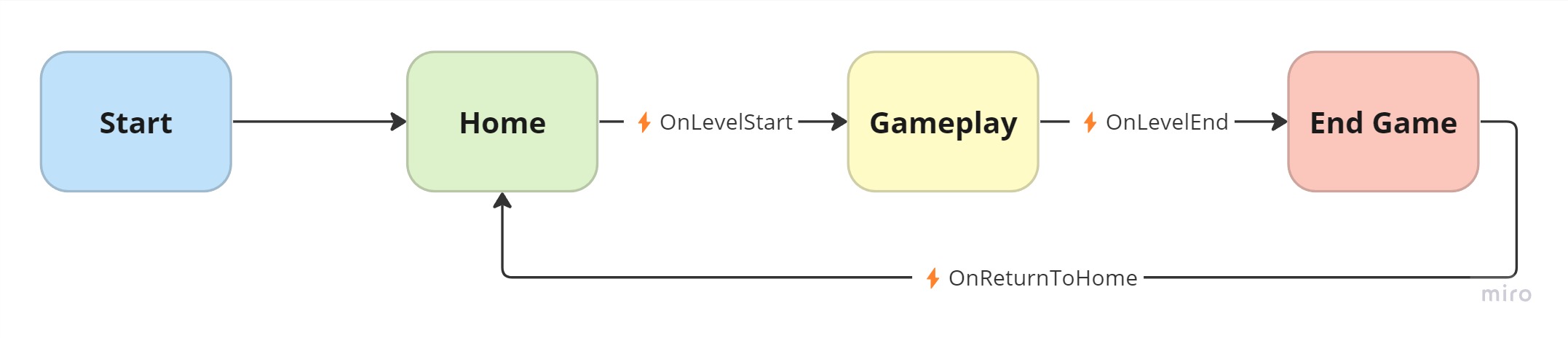
- When the game starts, the Game State is initialized to
Home - When the
OnLevelStartevent fires, the Game State is set toGameplay - When the
OnLevelEndevent fires, the Game State is set toEnd Game - When the
OnReturnToHomeevent fires, the Game State is set toHome- ⚠️ there is no reload of the scene
- 🔁 The loop restarts from here
The Sample Scene implements this game loop for you, here is what has been added:
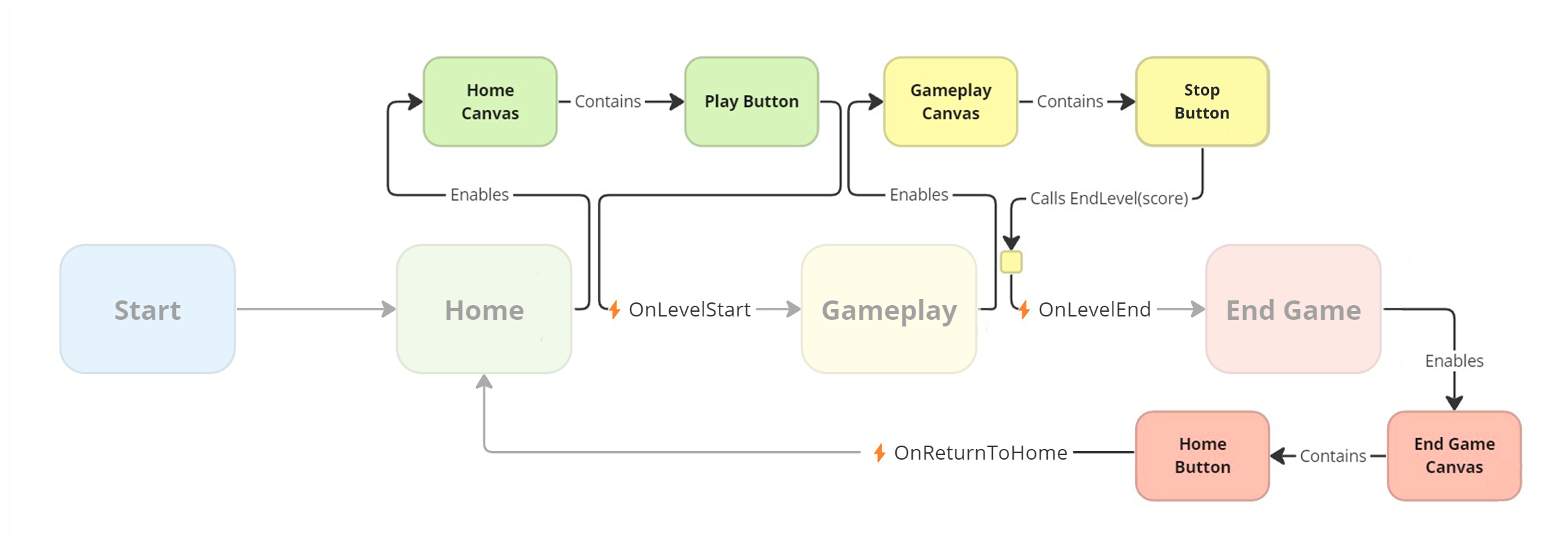
- Entering
HomeState enables the Home Canvas - Clicking the Play Button raises the
OnLevelStartevent- Entering
GameplayState enables the Gameplay Canvas
- Entering
- Clicking the End Button calls the
EndLevel()method that raises theOnLevelEndevent- Entering
End GameState enables the End Game Canvas
- Entering
- The Home Button raises the
OnReturnToHomeevent
Notes about End Button and
EndLevel()method:
- This End Button is way to provide a quick example for calling
EndLevel(), you will callEndLevel()by your gameplay scripts instead- In the full template it will also send the score in the leaderboard, but not here